How to Update Pure Blog
As of v1.5.0 Pure Blog allows you to update direct from the Admin interface. To do this, visit Settings > Updates and you will be greeted by a page similar to this:
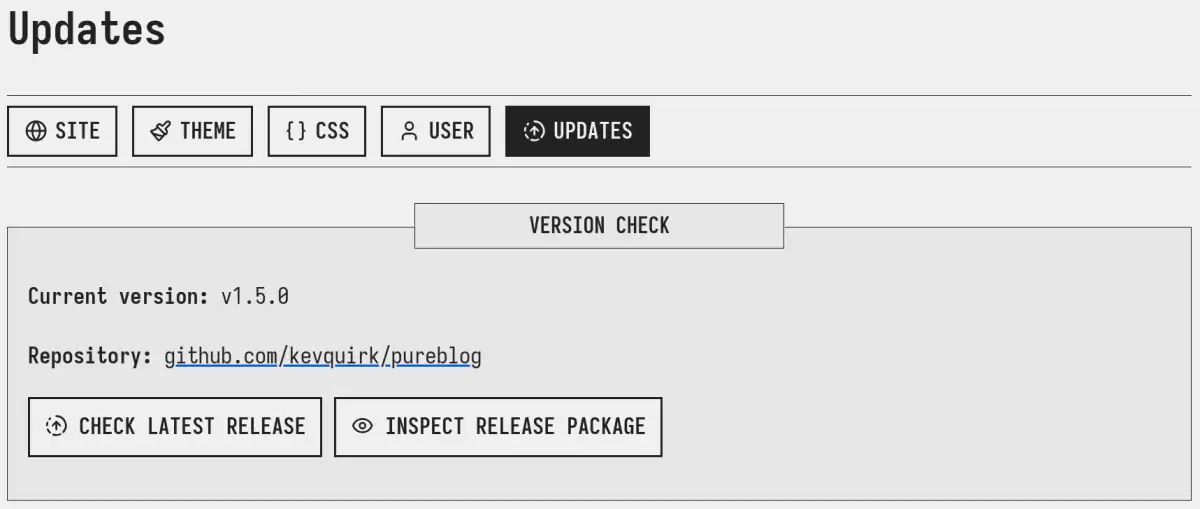
Once there you can check if there's an update by hitting the CHECK LATEST RELEASE button. Pure Blog will then check the latest release on GitHub to see if you're up to date or not. If you're not, Pure Blog will tell you.
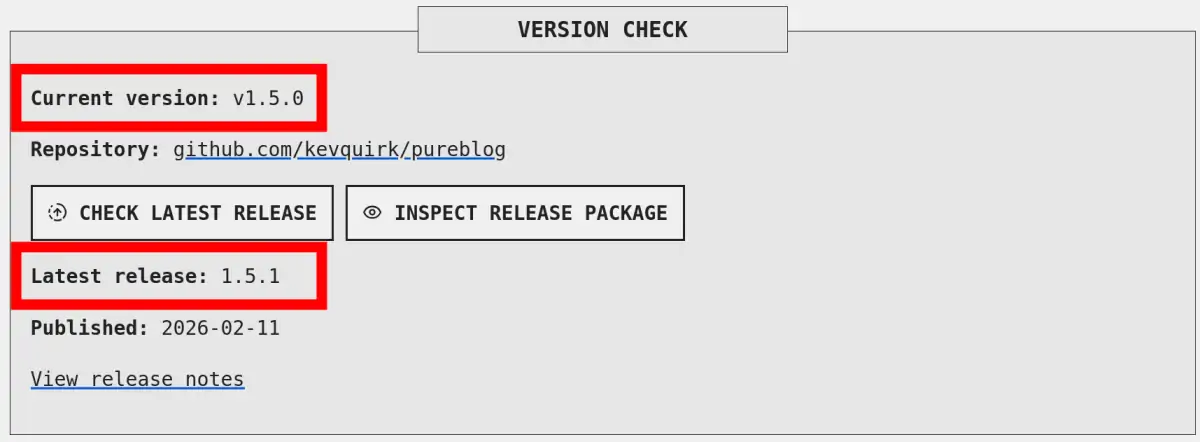
If you need an update, hit the INSPECT RELEASE PACKAGE button. Pure Blog will provide a list of what will change during this update for you to review and ensure it won't break anything you've changed on your site.
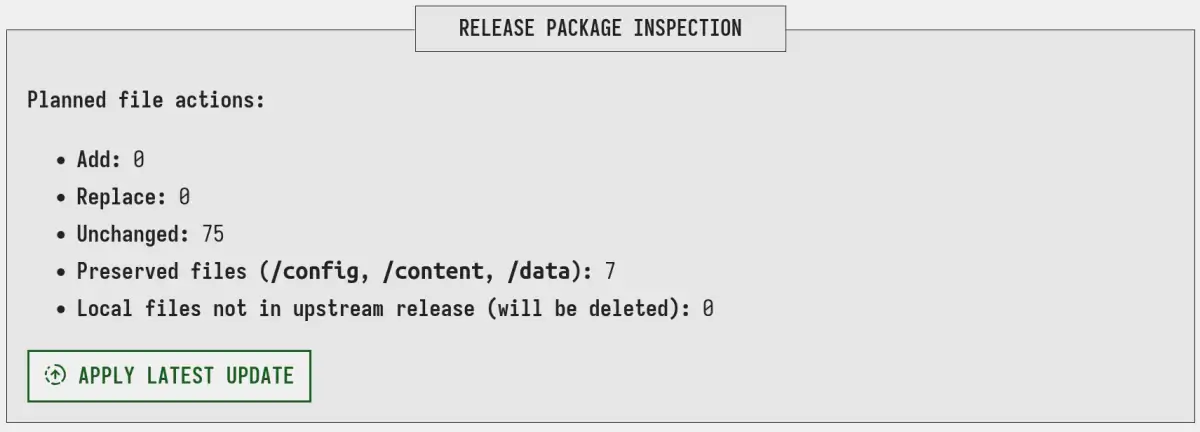
The Pure Blog update process will not touch your /content, /config or /data folders.
If you're happy with the changes, hit the green APPLY LATEST UPDATE button and Pure Blog will:
- Take a backup of your current version of Pure Blog, not including your content.
- Apply the update.
You should now see that the version number has updated, along with the backup that was taken at the time of the update.
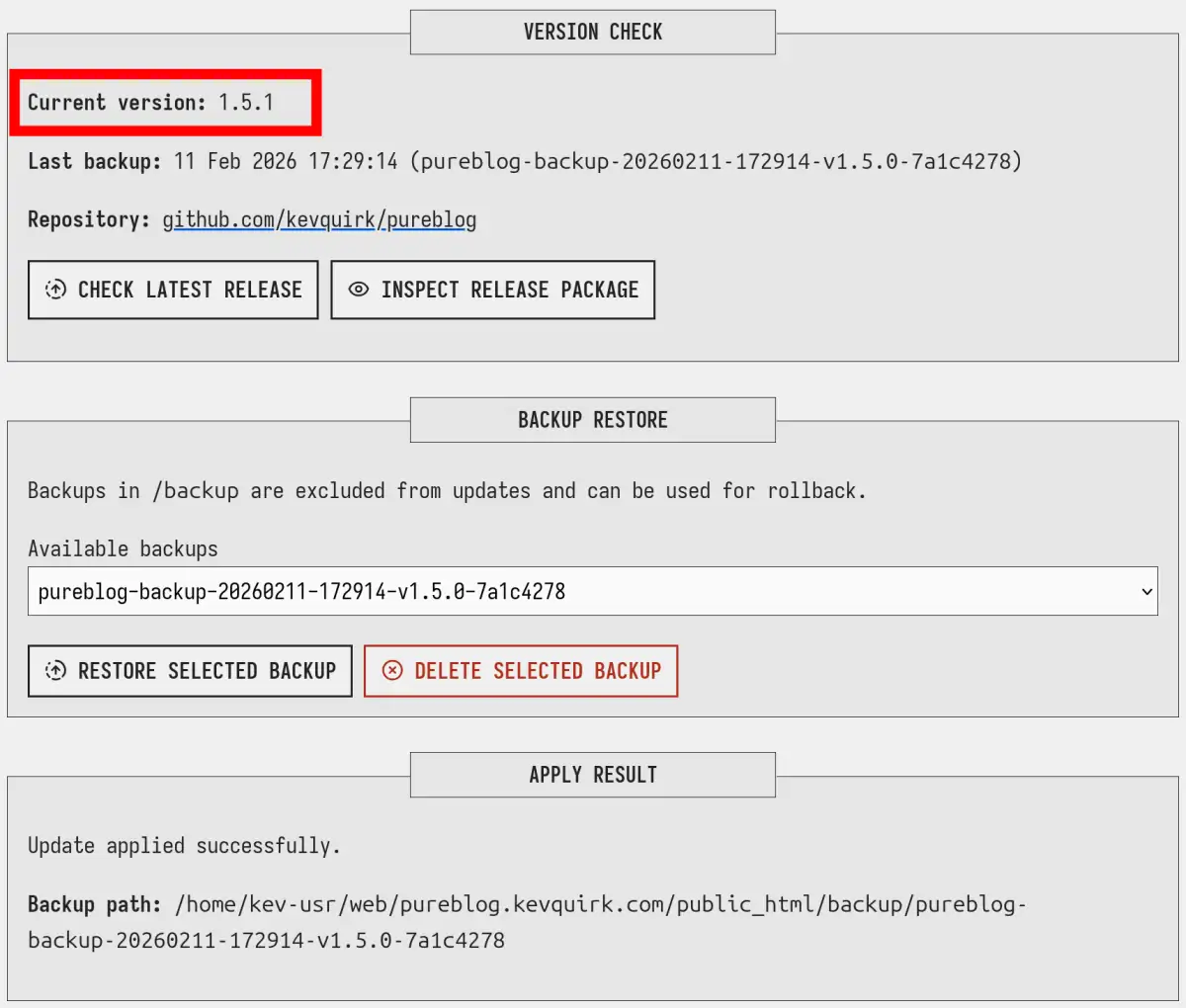
If you find anything is broken with your site after the update, you can hit the RESTORE SELECTED BACKUP button to restore Pure Blog back to its previous version.
If you have multiple backups in your list, look for the version number in the backup file name.
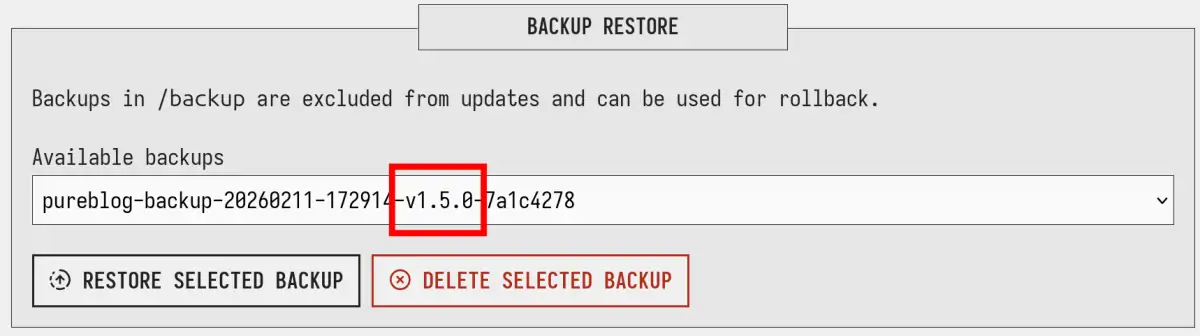
Once you're happy that the update worked successfully, feel free to delete the backup from Pure Blog to save space on your server.